 IKI SKY
Does the network encrypt traffic?
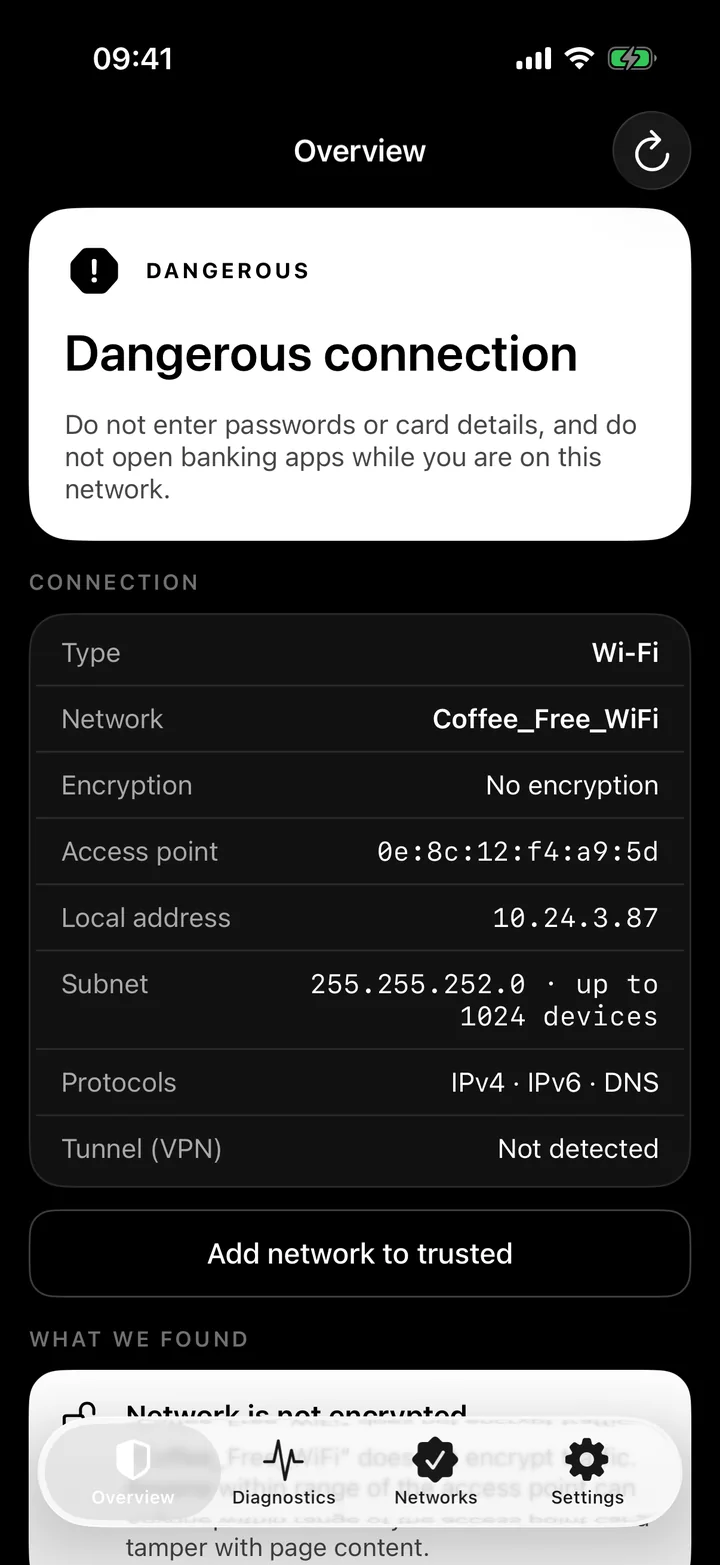
On an open network, unprotected data is available to anyone near the access point.
An app for iPhone and iPad
IKI SKY looks at how the network around you is protected and translates it into plain language: what exactly you are risking right now — before you type a password — and what to do about it.
The problem
Every day we join networks in cafés, hotels, airports and malls without knowing how they are set up. Your phone shows that a network is there — not whether you can trust it.
On an open network, unprotected data is available to anyone near the access point.
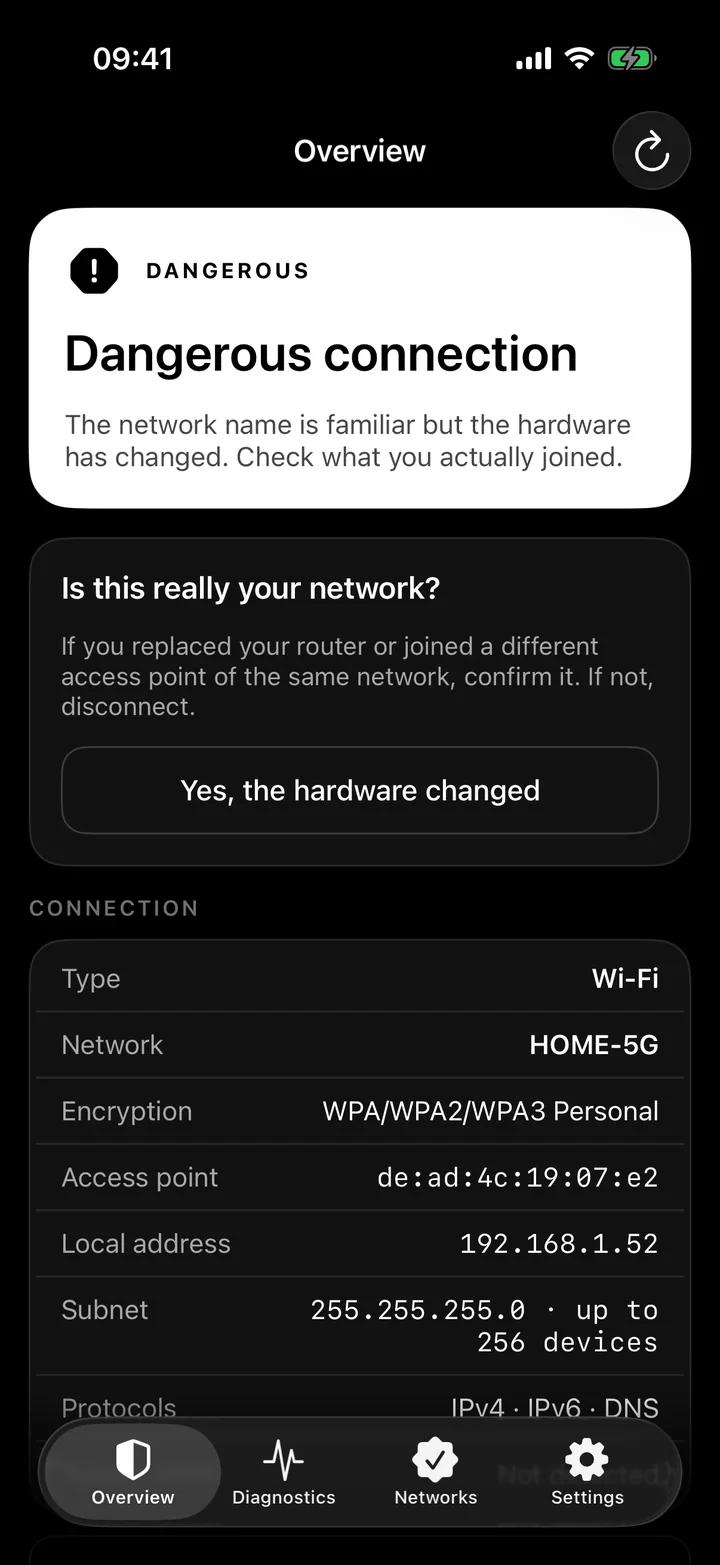
Someone else’s device can pose as a familiar network — this is called an “evil twin”.
Public Wi-Fi login pages do this: until you sign in, all traffic goes through the network owner’s equipment.
Being connected to Wi-Fi doesn’t mean the internet actually works and responds as it should.
Features
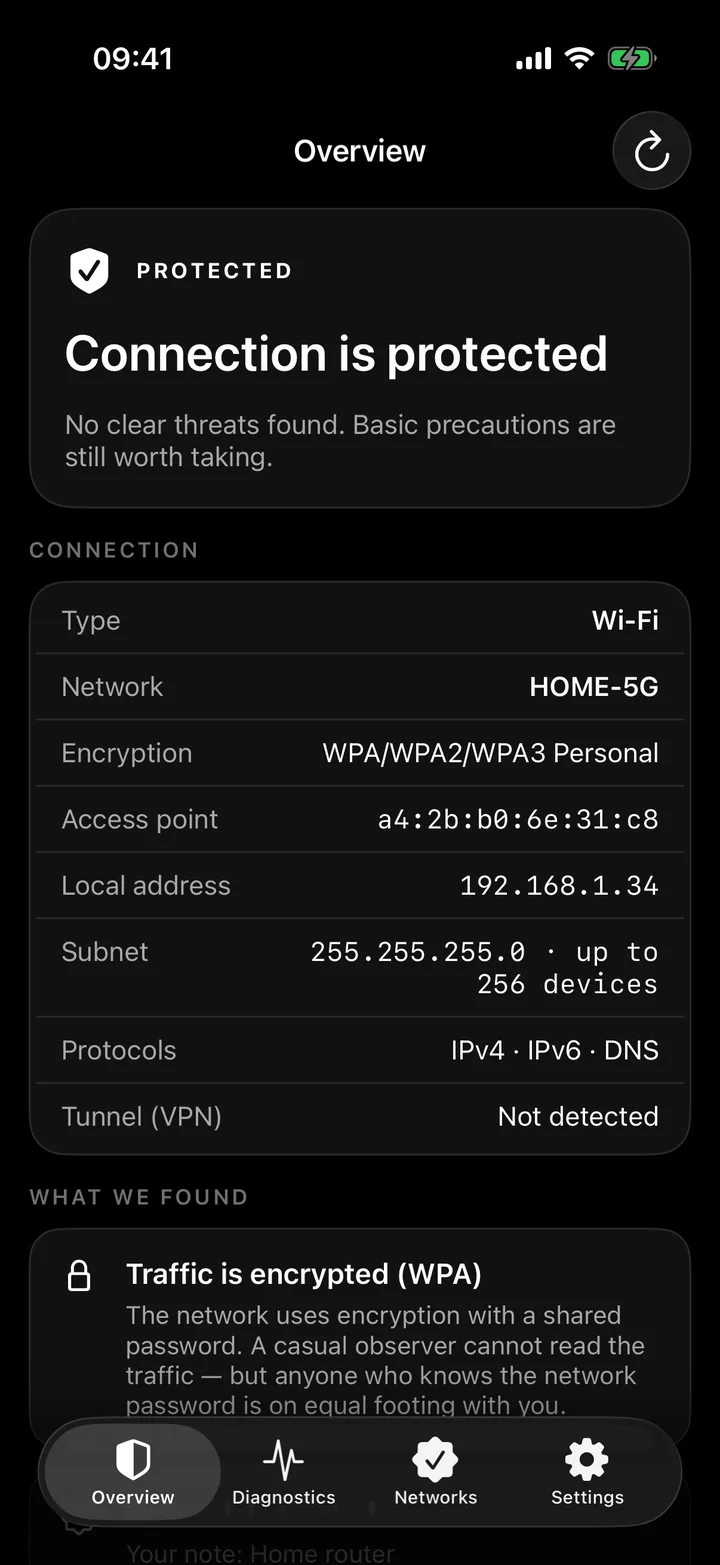
The result is one of four risk levels, followed by an explanation of every finding and what to do about it.
Encryption
Open networks and outdated WEP are flagged as dangerous. On such a network, unprotected traffic is available to anyone near the access point.
Access point impersonation
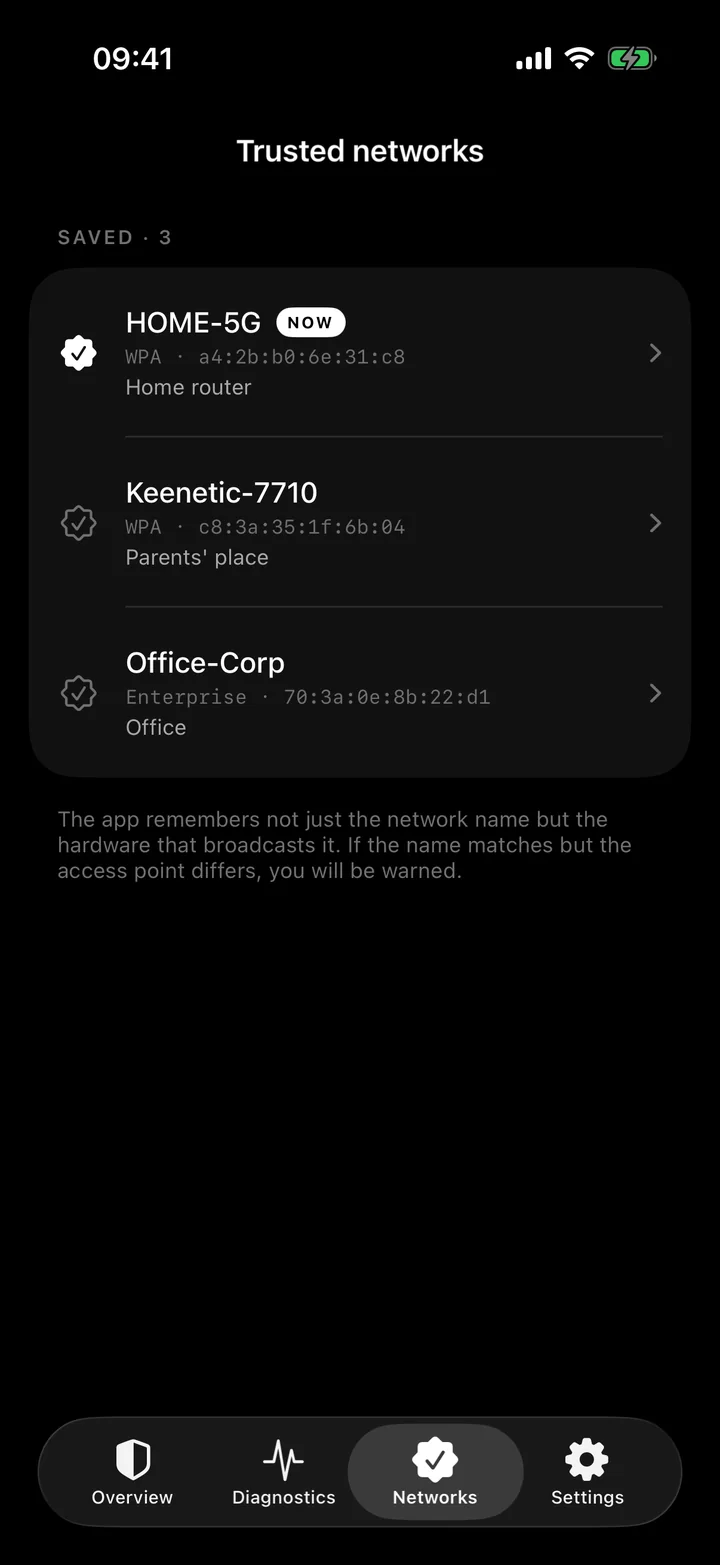
Mark your home and work networks as trusted. The app remembers not only the network name but also the hardware broadcasting it (BSSID). If a familiar name is suddenly broadcast by a different access point, you’ll know before you type a password.
This catches the typical case where the twin runs on different hardware. An attacker who also spoofs the hardware address won’t be detected this way. In offices and mesh systems the warning may fire for a legitimate neighbouring access point — that’s what the “this is my new access point” button is for.
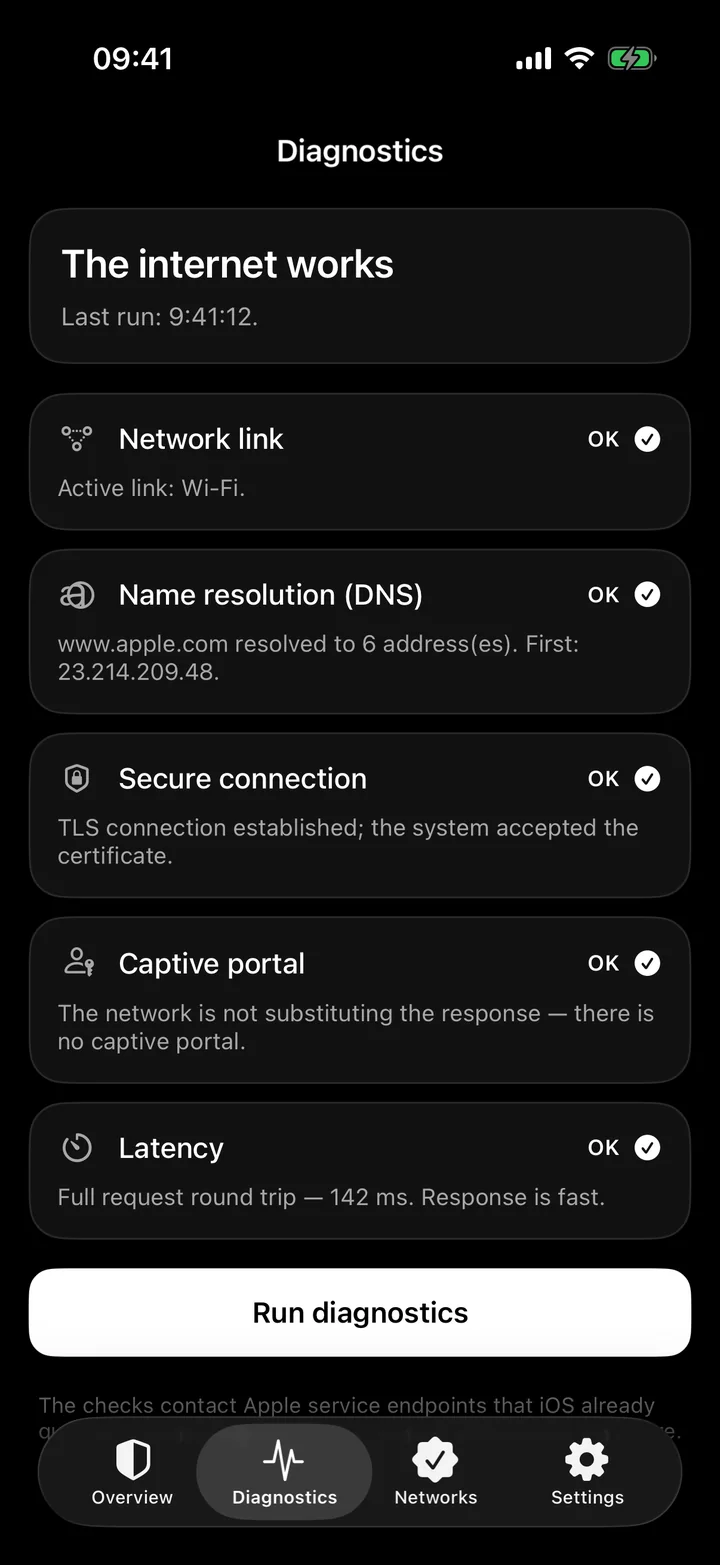
Diagnostics
Five checks, each with an “OK”, “Warning” or “Failed” result and a plain explanation.
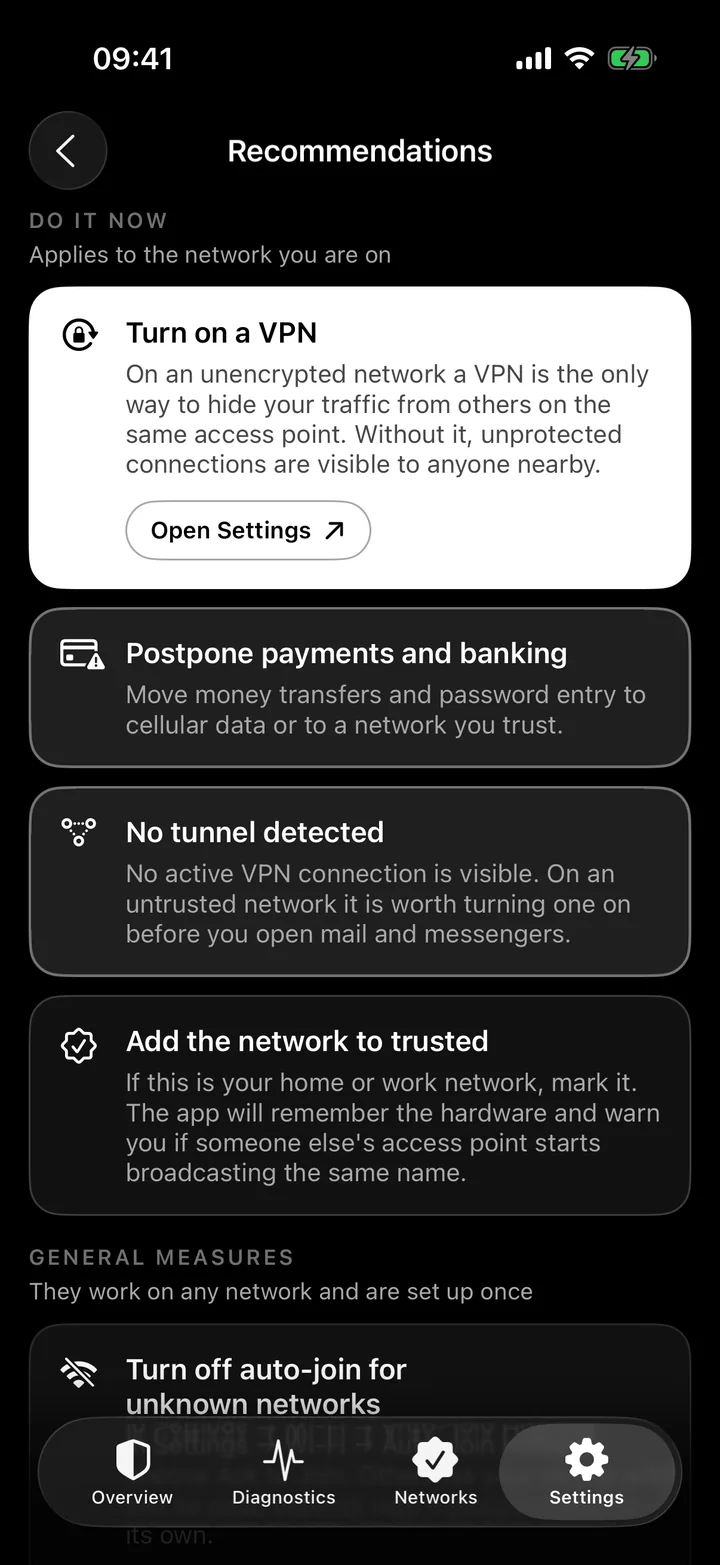
Recommendations
Specific advice for the current network, plus general measures you set up once.
Some tips have a button that opens iOS Settings — the text of the tip tells you where to find the right option.
Onboarding
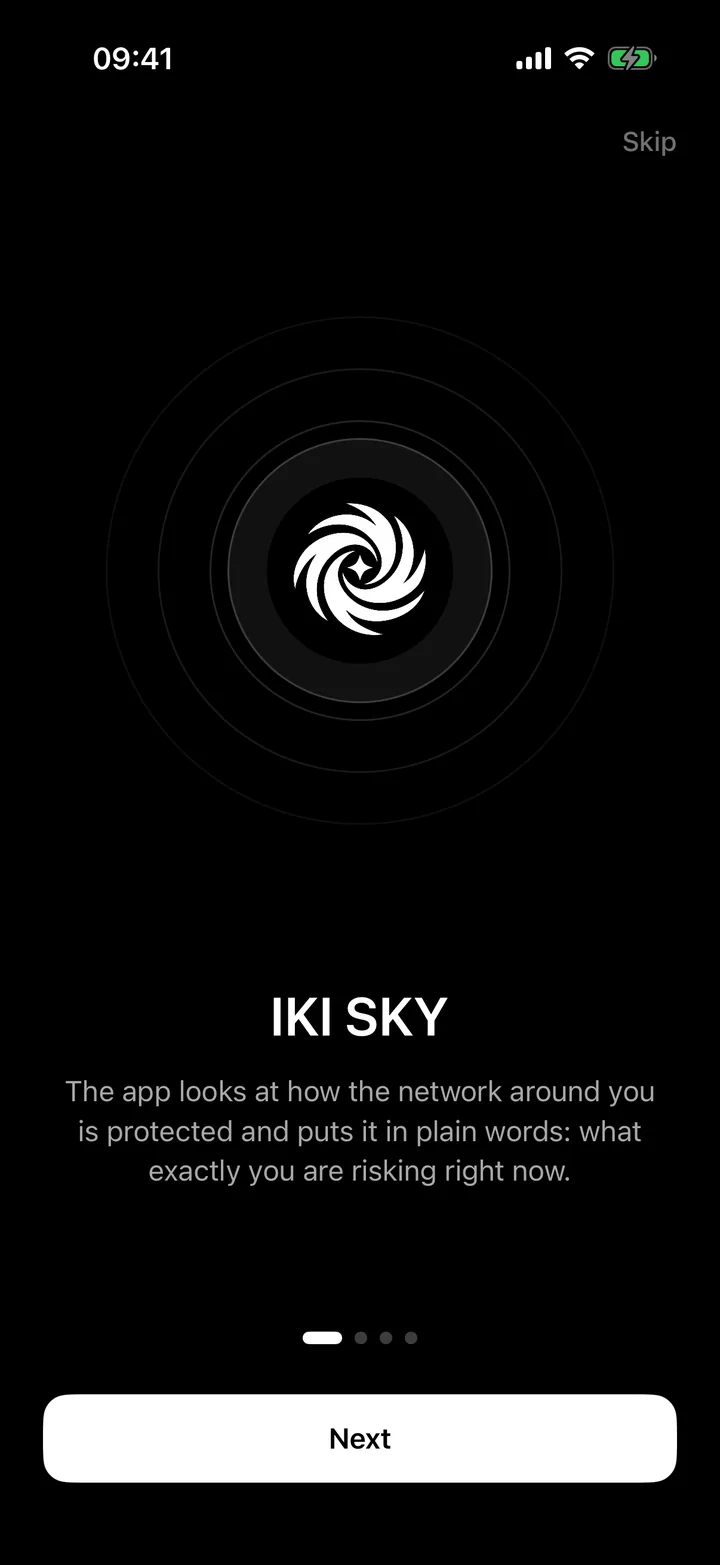
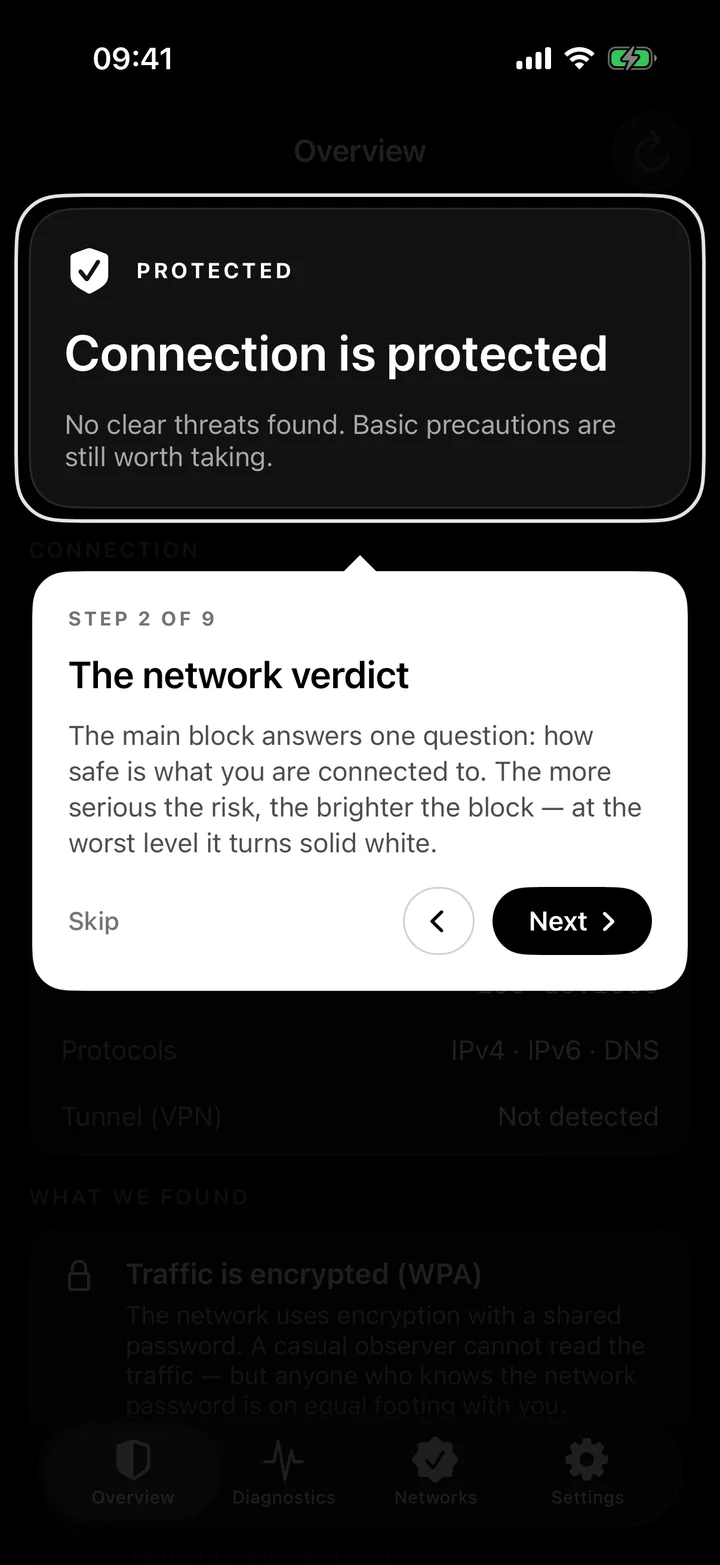
Four intro slides about what the app does, followed by a 9-step guided tour: the app dims the screen, highlights an element and explains it.
When the connection changes while the app is open. Or manually — with a button or pull to refresh.
Mobile data and wired connections are marked as safer than open Wi-Fi — with an explanation why.
If the subnet fits more than 512 devices, it’s likely a hotel, station or mall network full of strangers’ devices.
Switch the language in Settings instantly, no restart. The system language is used by default.
Risk levels
There are no colour signals in the app — the level is shown by brightness. At “Danger” the verdict block turns completely white.
No obvious threats; basic precautions still won’t hurt.
Nothing critical, but something is worth checking — for example, an unfamiliar network.
Some of your traffic may be visible to others.
Don’t enter passwords or card details, and don’t open banking apps.
Privacy
No account, no analytics, no ads. Your data stays on your phone.
No sign-up, no login.
Your trusted networks and language choice are stored only on your phone.
iOS only reveals a Wi-Fi network’s name and security type to apps with precise location access. Coordinates are never stored or sent anywhere.
Diagnostics contact captive.apple.com and www.apple.com — the same addresses iOS itself uses to check the network. No user data is sent to them.
The code contains no analytics, ads or trackers.
The app is free, with no subscriptions or in-app purchases.
Honest about limits
The app helps you assess risk — and doesn’t promise what it can’t deliver.
The app doesn’t encrypt or block anything: it shows the risk and suggests what to do. You protect yourself — for example, by turning on a VPN.
Checks run while the app is open. It doesn’t send notifications.
It can’t see other devices on the network: iOS doesn’t allow that.
The assessment relies on what iOS reports. It helps you judge risk; it doesn’t guarantee safety.
FAQ
No. IKI SKY doesn’t encrypt or block anything. It shows how risky the current network is and tells you when it’s worth turning on a VPN.
iOS only reveals a Wi-Fi network’s name and security type to apps with precise location access. IKI SKY never stores your coordinates or sends them anywhere.
Without this access the app can’t see the Wi-Fi name and encryption, but internet diagnostics still work.
No. Checks run while the app is open: the verdict updates itself when the connection changes, or manually with a button or pull to refresh. The app doesn’t send notifications.
It’s free. There are no in-app purchases or subscriptions.
iPhone and iPad running iOS or iPadOS 26.2 or later.
The verdict is an assessment based on what iOS reports. It helps you understand the risk but doesn’t guarantee safety. For example, access point impersonation won’t be detected if the attacker also spoofs the hardware address.
Soon on the App Store. Questions? Reach us on Telegram or at official.iki.technologies@gmail.com.

IKI SKY for iPhone and iPad. Free, no account, no ads.